Free
Digital business card
Tap to share name, role, phone, email and socials. Saves straight to the phone's contacts.
- Sales reps
- Freelancers
- Conferences
Pick the page type that fits your smart NFC card, keychain, luggage tag or sticker. Dynamic Taproo pages stay editable after print and track scans and taps from one dashboard — or pair with a static code if you prefer.
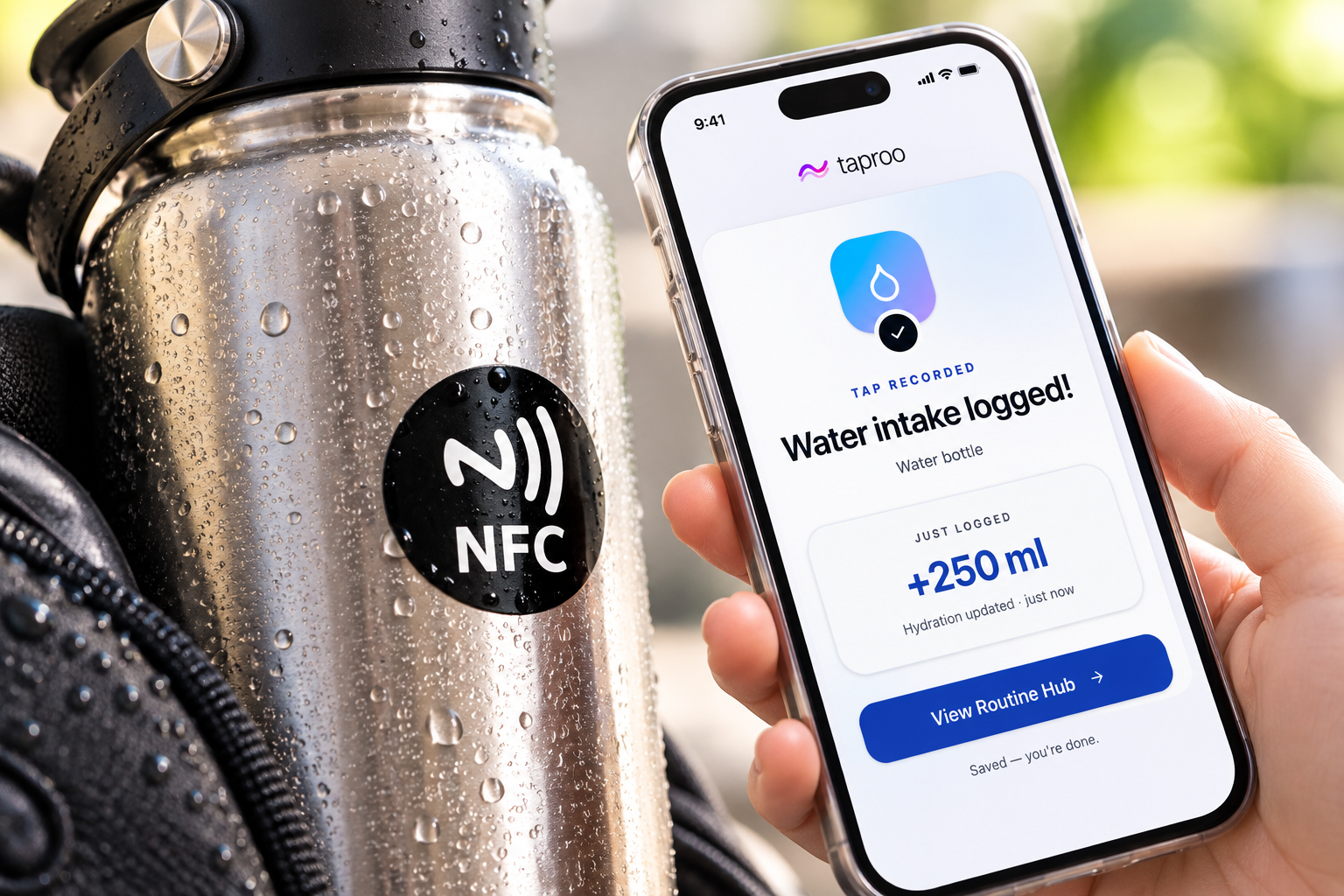
Taproo combines hosted QR and NFC page types with purpose-built tools such as Routine Hub. Routine Hub starts with one active Routine on Free; Pro unlocks unlimited active Routines, Bedtime, Reading, Wellbeing and Plant care presets, goals, streaks and 30-day history.
Search by keyword, filter by category or plan, and click "Use this template" to start building.
11 templates
Tap to share name, role, phone, email and socials. Saves straight to the phone's contacts.
A Linktree-style profile with avatar, bio, links and socials — four pre-built styles.
In-Case-of-Emergency contacts, allergies, conditions and meds on a single quick-scan page. An information tool — not a medical device.
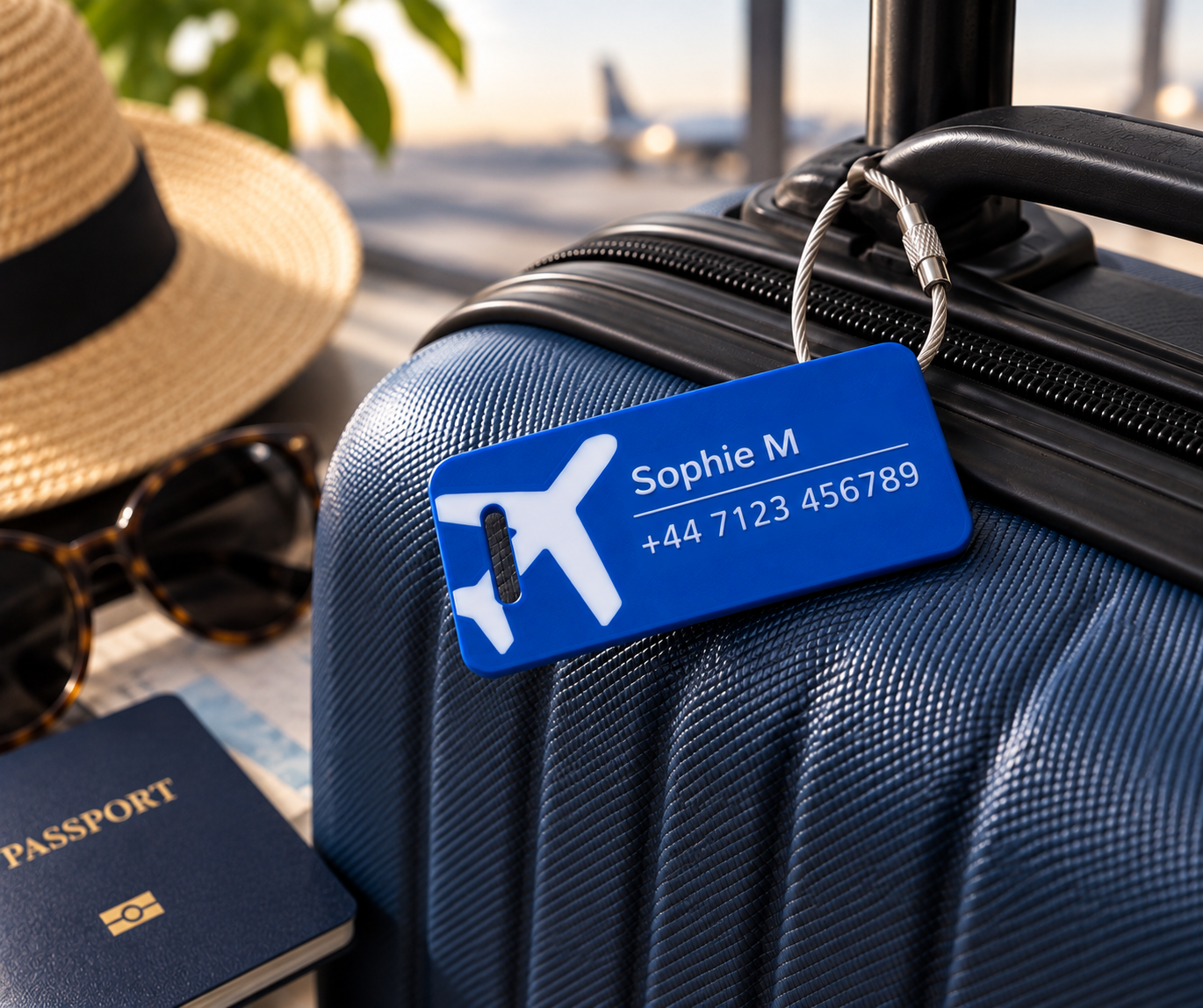
Flight-ready return-to-owner page with trip details, reward and drop-off address.
Child-safe Lost & Found — hides surnames and home addresses by default.
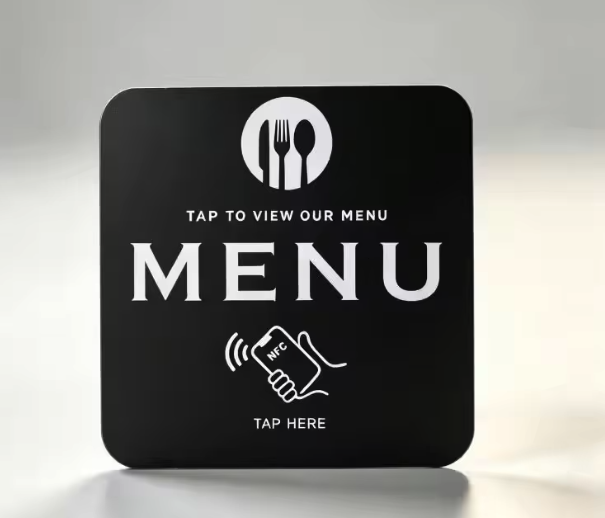
Tabbed menus with prices, allergens, calories and reservation link — four layouts.
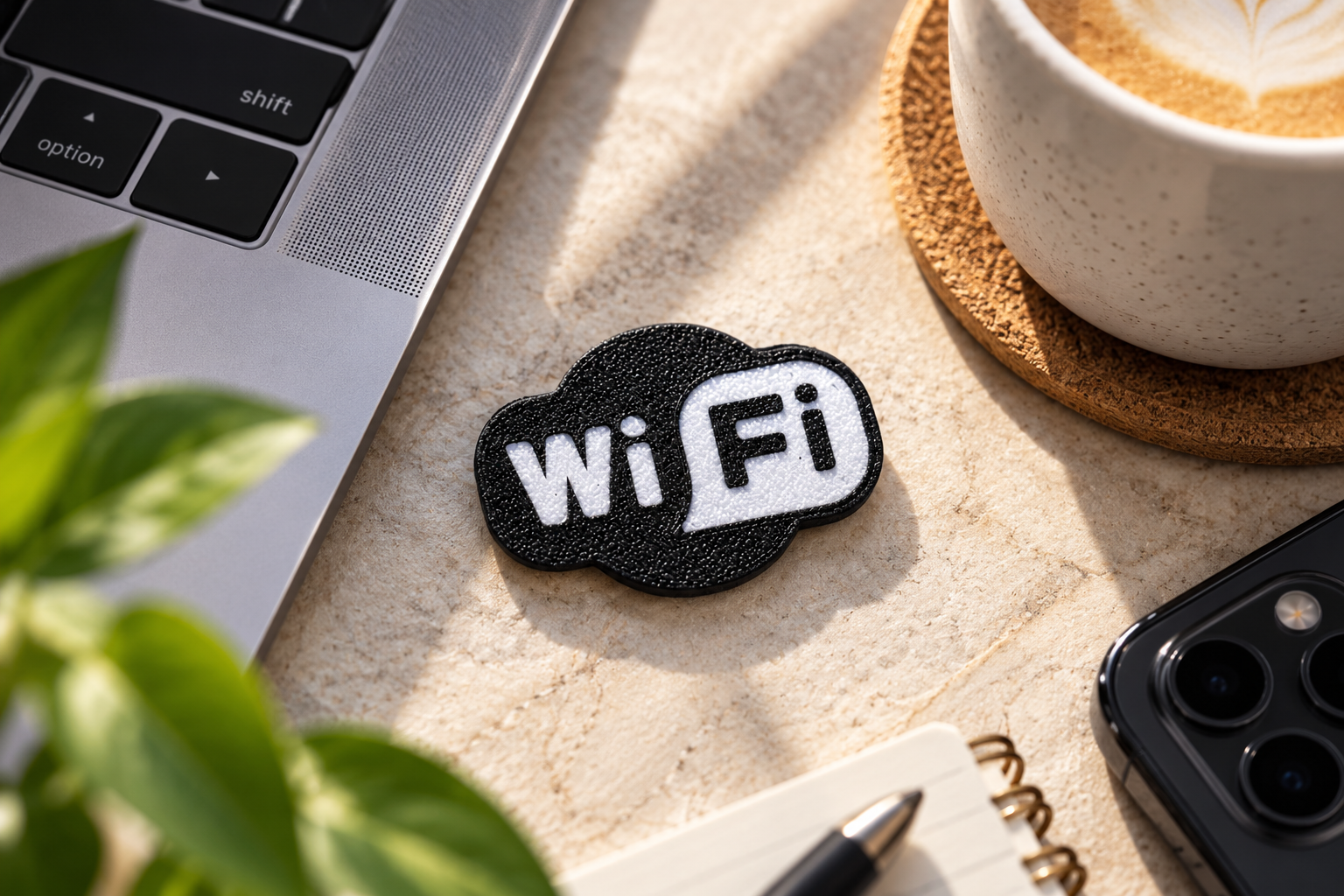
Scan to connect — SSID, password and encryption, no typing required.
Opens a WhatsApp chat with a pre-filled message to your number.
Date, location and description with one-tap add-to-calendar.
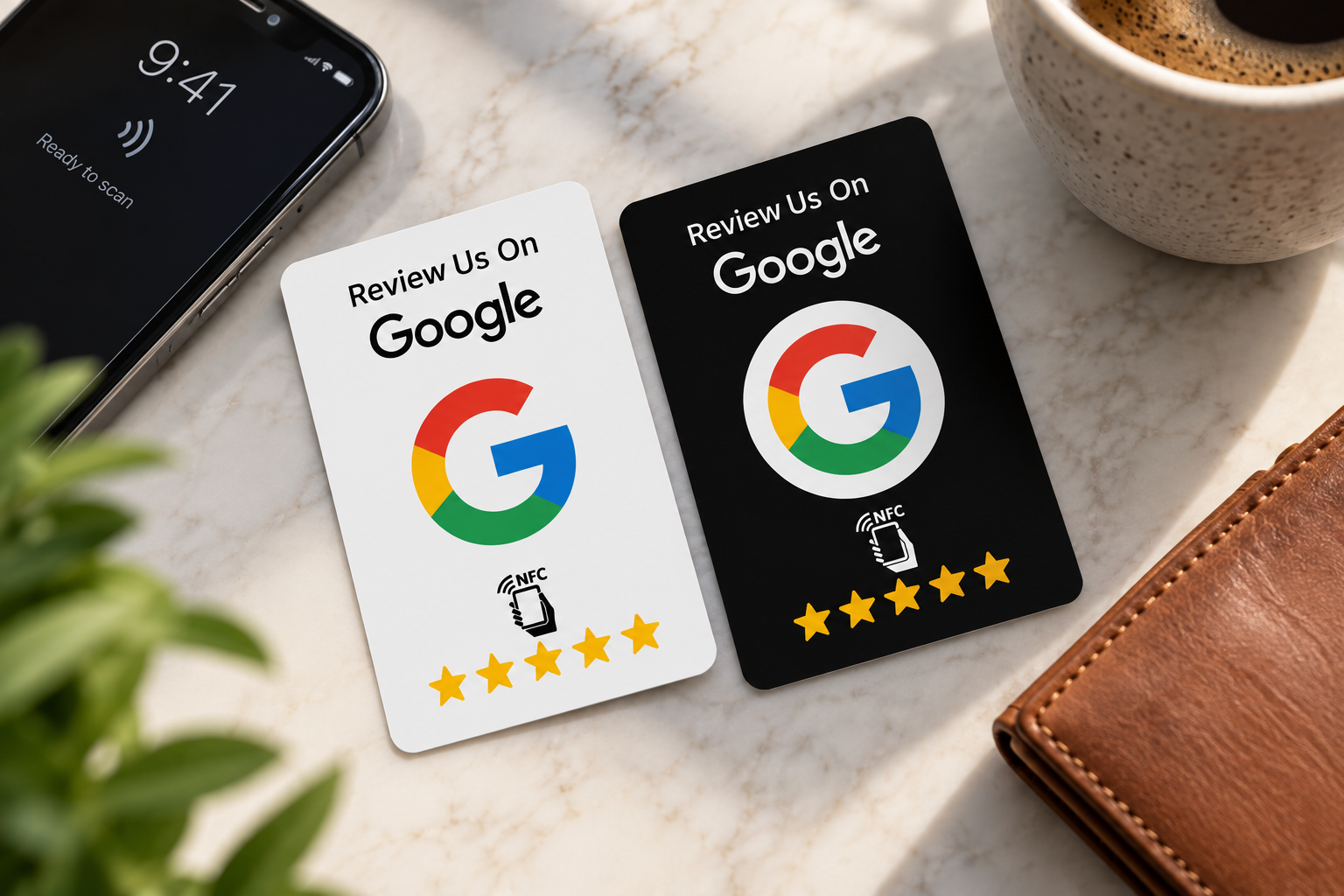
Single big CTA pointing customers to your Google review URL.
Product information page for GS1 Digital Link — DPP, batch, expiry.
Five minutes, no app and no card details. Every page works with a QR code, an NFC tag, or both.
Choose the page type that matches what you're sharing — digital business card, menu, Wi-Fi, Emergency ID (ICE), luggage tag, review link and more. Every template is editable afterwards.
Fill in your details in the Taproo editor: name and role, links, photos, menu items or emergency contacts. Changes save instantly and go live on your page URL.
Every page comes with a permanent short URL and a downloadable QR code you can print, email or add to a slide. Free on every plan, no card details needed.
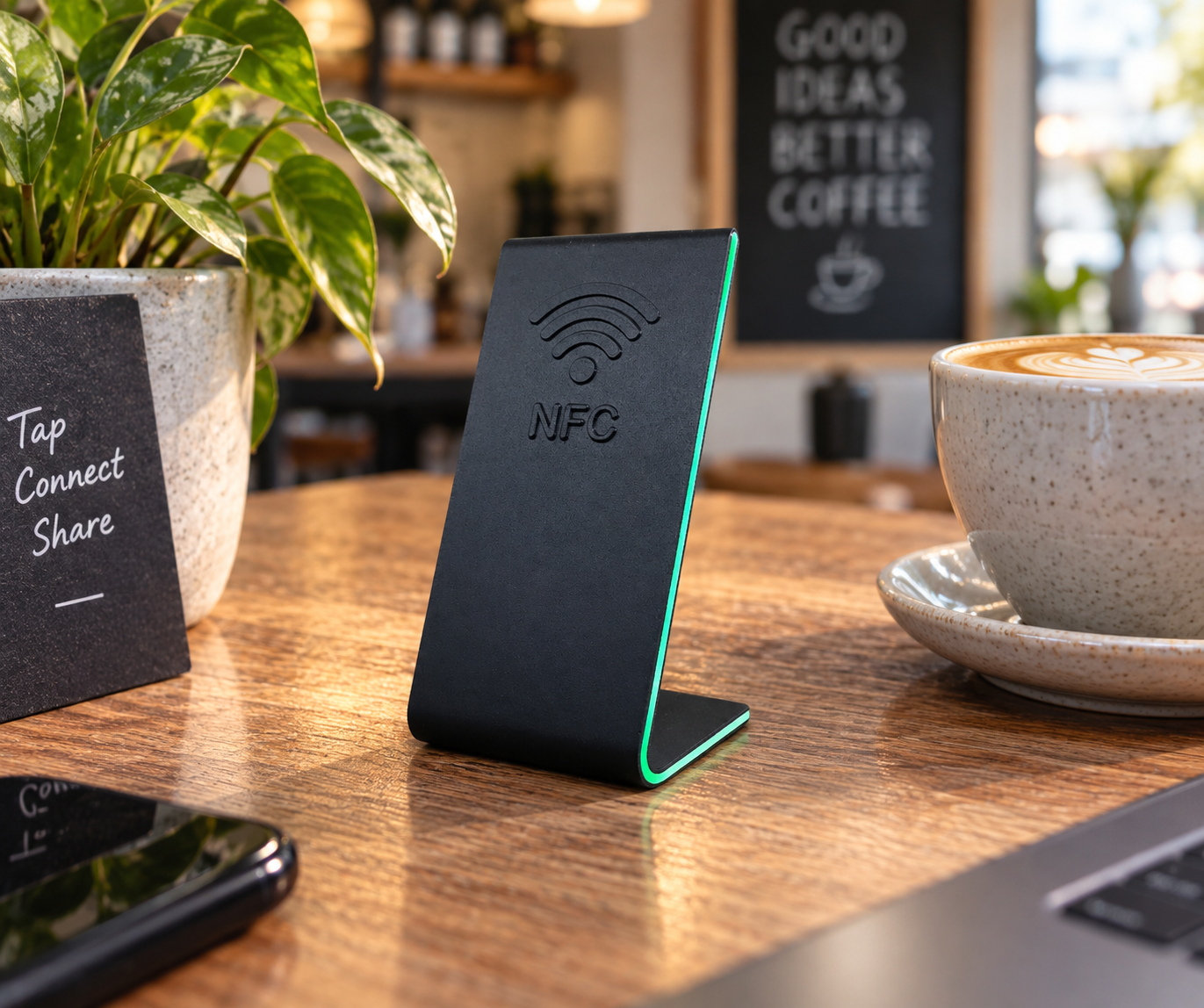
Order a Taproo NFC card, keychain, sticker or luggage tag and link it to the page at taproo.com/activate. Tapping the tag on any modern phone opens the page — no app required.
Update the page whenever details change. Every QR already printed and every NFC tag already handed out points at the new content automatically.
Got a tag already? Activate it here or read the step-by-step activation guide.
Make it tappable
Keychains, metal cards, stickers, wristbands — pre-programmed and shipped to your door. Pick the substrate that fits the use case.
Team workspaces with roles, geo-targeted redirects, a public REST API and webhooks, a branded workspace URL (taproo.com/b/yourbrand) and the option to remove Taproo branding are not available on the self-service plans yet. Email hello@taproo.com if you need them and we will keep you posted.
Upgrade to Pro to unlock 50 dynamic pages, unlimited active Routine stickers, premium templates and advanced routing.